
How to Set Up Your LuvLink Friendship Lamp: A Step-by-Step Guide for US Users
Quick answer: Setting up your LuvLink Friendship Lamp takes about five minutes. Plug it in, download the LuvLink app, connect each lamp to your home WiFi, and group them together in the app. Once paired, a single touch on your lamp lights up theirs — wherever in the world they are.
You just got the box. Maybe it's sitting on the kitchen counter, or you're watching your friend unbox theirs over FaceTime a few states away. Either way, you're about a five-minute setup away from something that sounds simple but feels genuinely magical. This guide walks you through every step of the Friendship Lamp setup — no tech background needed.

What You Need Before You Start
Grab these before you open the app:
- Your Friendship Lamp (plugged into a power outlet)
- A smartphone — iPhone or Android both work
- Your home WiFi name and password (2.4GHz band — the lamp doesn't connect to 5GHz networks)
- The LuvLink app downloaded from the App Store or Google Play
- Each person who has a lamp needs to do this same setup on their own phone and their own WiFi
One thing people miss: the lamp only connects to 2.4GHz WiFi, not 5GHz. Most routers broadcast both — you'll usually see two network names, one of which may have "5G" in it. Just make sure you pick the 2.4GHz one. If your router combines them automatically, try connecting the lamp and see if it works; most modern routers handle the handoff fine.
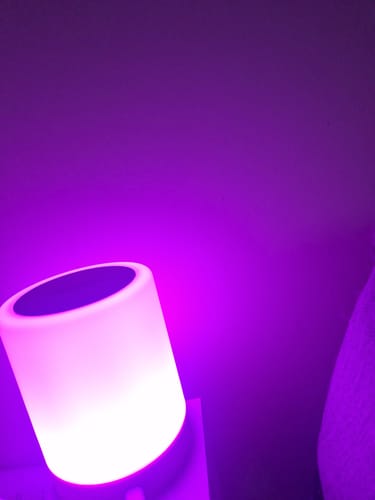
“I bought my Mum and I the lamps so we could keep in touch. Sometimes life can get a bit busy for me to have a full-blown conversation over the phone, so it is lovely to have something during those times, where I can send my Mum a quick check in and bring a little smile and giggle to us both. My sister now wants one so she can join in 🩷 these are a great idea, we love our friendship lamps. Kim”
Step-by-Step: How to Set Up Your Friendship Lamp
Step 1 — Plug In and Power On
Plug your lamp into a standard US outlet using the included cable. You'll see the lamp glow briefly as it powers on — that's normal. It's just waking up and looking for a connection. Leave it plugged in throughout the setup process.
Step 2 — Download the LuvLink App
Search "LuvLink" in the App Store or Google Play and download the free app. Once it's installed, open it and create an account using your email address. Takes about sixty seconds. Your friend (or whoever has the other lamp) needs to do the same on their phone — separate accounts, same app.
Step 3 — Add Your Lamp to the App
Inside the app, tap Add a Lamp and follow the on-screen prompts. The app will ask you to connect to your lamp's temporary WiFi signal first — this is just how the lamp receives your home WiFi credentials. Once you've entered your 2.4GHz network name and password, the lamp connects to your home internet. The glow will settle, confirming it's online. If it doesn't connect on the first try, double-check the WiFi band and make sure you're entering the password exactly right (they're case-sensitive).

Step 4 — Name Your Lamp
Give your lamp a name — something personal works great here. "Mom's Lamp," "Sara & Me," or just your own name so your friend knows which one is yours in the group. This name shows up in the app, so keep it recognizable.
Step 5 — Create or Join a Lamp Group
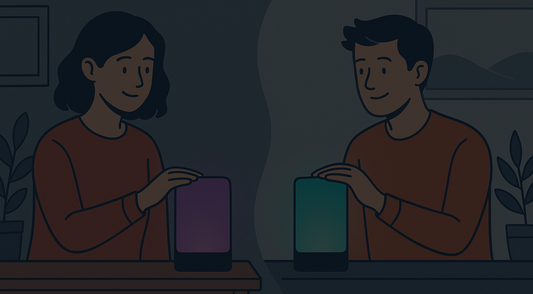
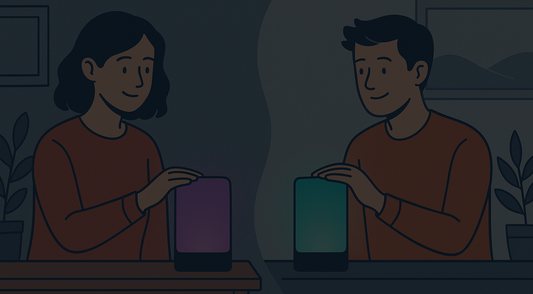
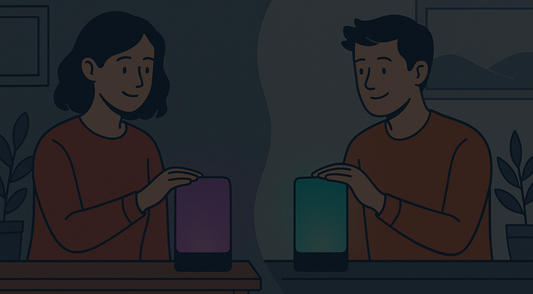
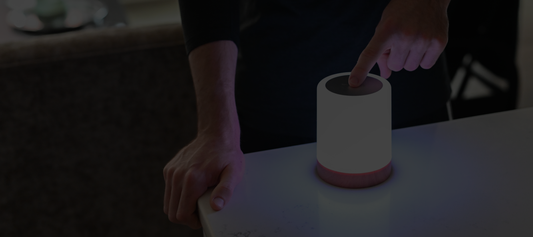
This is the step that actually links your lamps together. One person creates a Group in the app and gets a short invite code. The other person enters that code when they join. Once you're both in the same group, your lamps are paired. Touch yours — theirs lights up. That's it. You're connected.
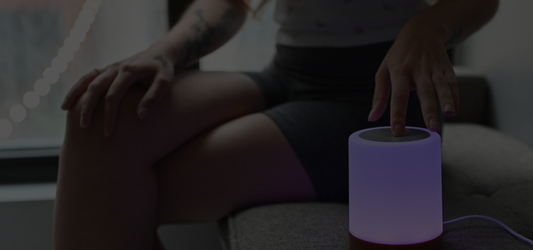
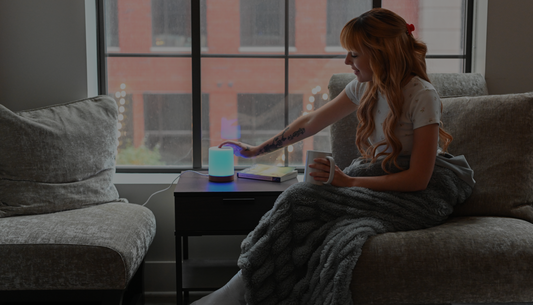
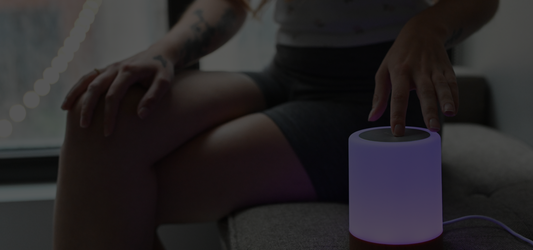
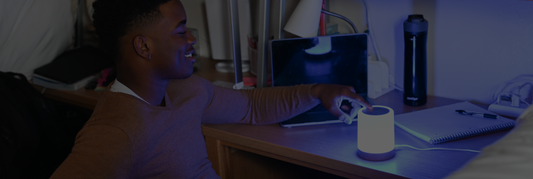
Touch your lamp. Their lamp lights up. No words needed — just the warmth of knowing someone's thinking of you.
If you have a Set of Three or more, everyone follows the same steps and joins the same group using the same invite code. All lamps in the group light up together when any one of them is touched.
Step 6 — Choose Your Colors
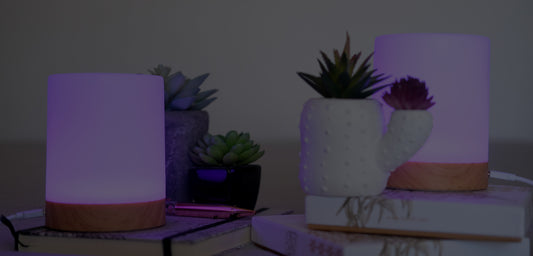
Here's where it gets fun. The Friendship Lamp supports over 200 colors, and each person in the group can pick their own signature color. So when your lamp lights up, you know at a glance who's thinking of you — your mom's lamp glows yellow, your college roommate's is deep blue, your long-distance partner picks soft pink. Open the app, tap your lamp, and choose your color from the palette. You can change it anytime.
Colors make the lamp more than a notification — they give it a personality. Couples love assigning a different shade to each mood; families use them to tell at a glance which sibling just tapped in.

How Does the Friendship Lamp App Work Day to Day?
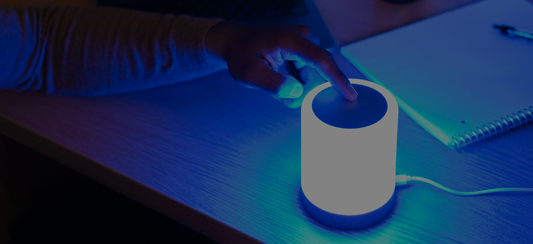
After setup, the app sits quietly in the background. You don't need to open it to send a touch — just tap the lamp itself. The app is mainly where you manage your group, adjust your color, check your lamp's connection status, and update settings.
A few things worth knowing for daily use:
- Touch duration matters. A quick tap sends your color. A longer hold can cycle through different colors if you've set that up — great for sending a little "extra" signal on a hard day.
- The lamp stays on. Once lit, it holds the color until someone else in the group taps — or until you tap it again to turn it off.
- Notifications. You can enable app notifications so your phone lets you know when someone touched their lamp, even if you were away from yours.
- No subscription required. Once the lamps are set up, the connection is yours — no monthly fee to keep them talking to each other.

Troubleshooting: When Setup Doesn't Go Smoothly
Most hiccups happen at the WiFi step. Here's what to check if your lamp won't connect:
- Wrong WiFi band: Switch to 2.4GHz. If your router only shows one network name, try connecting anyway — it may work automatically.
- Typo in password: WiFi passwords are case-sensitive. Re-enter carefully.
- Router too far away: Keep the lamp within a reasonable range of your router during setup, then move it once it's connected.
- Lamp won't appear in app: Try restarting the lamp (unplug, wait ten seconds, plug back in) and re-attempt the Add a Lamp flow.
- Both lamps online but not syncing: Double-check you're both in the same group. Each person's lamp needs to be online for the other to light up.
If you're still stuck, LuvLink's support team is genuinely responsive — reach out through the app or the website and they'll walk you through it.
Which Friendship Lamp Set Should You Get?
If you haven't ordered yet — or you're thinking about adding more lamps to your group — here's a quick look at the available sets:
| Set Option | Best For |
|---|---|
| Set of Two | Couples, best friends, or one parent and one kid |
| Set of Three | Three-way friend groups, siblings, or parent + two kids away at college |
| Set of Four | Families spread across multiple cities |
| Set of Five | Larger friend groups or extended families |
| Set of Six | Big families or friend squads who want everyone in the loop |
| Single Lamp | Adding to an existing group |
Not sure if the Friendship Lamp is the right style for you? Check out the full comparison of the Friendship Lamp vs. Infinity Lamp vs. Pulse Lamp to find the one that fits your home and your relationship best. The Ultimate Guide to Long-Distance Lamp Styles is also a great place to browse if you're undecided.
Connecting a whole family at once? The Family Bundle saves you 10% and is worth a look before you order individual sets.
You're Two Taps Away from Feeling Less Far Apart
Once your lamps are set up, something shifts. The distance doesn't disappear — but it softens. A glow across the room becomes proof that someone, somewhere, stopped for a second just to say: I'm thinking of you.

Ready to get yours? Shop the Friendship Lamp here and pick the set that's right for you. If you're shopping for someone else — a college kid heading out of state, a friend who just moved across the country — the Best Long-Distance Gifts for College Students guide has more ideas worth bookmarking.
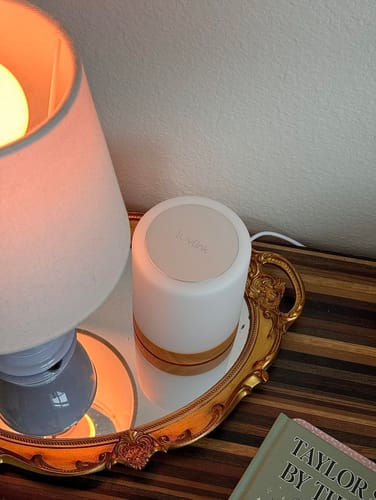
“I got these lamps for my mom and I and it has been so sweet! It’s such a creative way to keep us connected while I’m at college. We can see when we’re thinking about one another which makes it a good reminder to pick up the phone and call! The PERFECT Mother’s Day gift for long distance families - I’ve thought about getting one for my dad and brothers eventually since you can have multiple lamps in the same group! Seriously such a cool product!”
Frequently Asked Questions
Does the Friendship Lamp work internationally?
Yes. As long as both lamps are connected to WiFi, they work across any distance — different cities, different states, different countries. The touch signal travels over the internet, so geography doesn't matter.
Do both people need the LuvLink app?
Yes, each person with a lamp needs to download the free LuvLink app and create their own account. The app is how each lamp connects to WiFi and joins the shared group. After setup, you don't need the app open to send a touch — just tap the lamp directly.
What if my lamp loses its WiFi connection?
If your lamp goes offline (after a power outage or router restart, for example), it won't be able to send or receive touches until it reconnects. Usually it reconnects on its own once WiFi is restored. If not, unplugging and replugging the lamp gives it a fresh start.
Can more than two people share the same group?
Absolutely. You can have up to six lamps in one group — all linked, all lighting up together whenever anyone taps. It's a favorite setup for families and close-knit friend groups who want everyone to feel included, no matter where life has taken them.